
Ticket forms let customers submit support tickets directly without sending an email. While building a form, you can use any ticket field, including custom fields you've created. This way, you can capture the exact information you need to resolve issues faster.
Creating ticket forms
Go to Admin Panel.
Click on Ticket forms.
Click on the Add new ticket form.
Enter the form title and description.
Active: Choose if your form should be available to customers right away. You can change this later.
Click on Save changes.
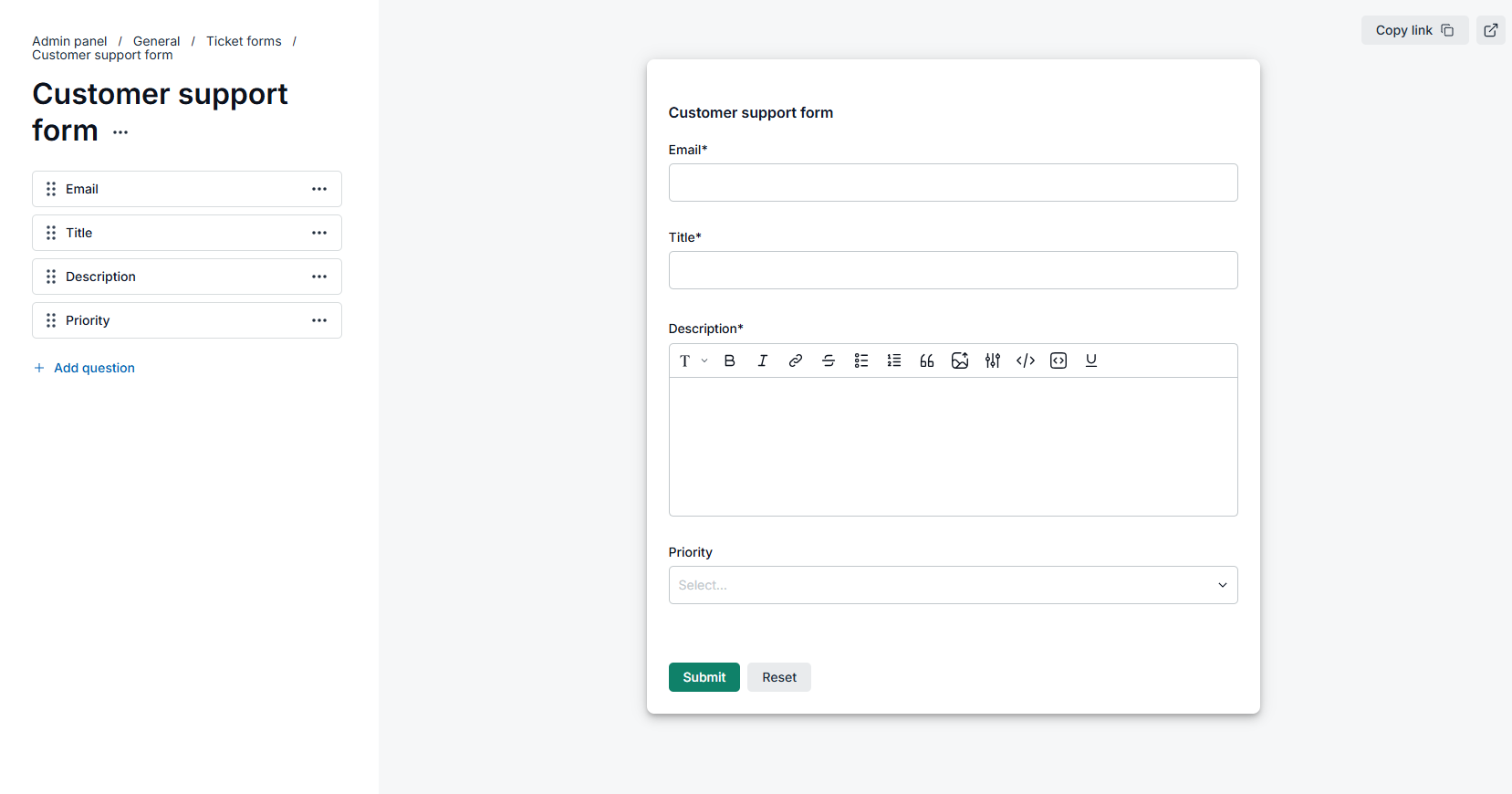
Hide a form from customers
There are several reasons you might need to hide a form, for example, you no longer want submissions, or you want to replace it with a new form that has different fields.
To hide the form, turn off the Active toggle. This will make the form's link inaccessible to customers.
Add new questions to web forms
You can add ticket fields as questions in your ticket forms. Since form submissions generate tickets, the email, title, and description fields are mandatory. Beyond these three, you can add any custom field you want to associate with tickets created through the form.
Add custom ticket fields to web forms
When you want to capture additional details, you can add custom ticket fields to the form so customers can provide that information at the time of submission.
Create a custom ticket field if it's not already created.
Go to the web form details.
Click on Add new question button.
Select the field that you want to add.
Click on Save changes.
Adding the forms menu to KB
NeetoKB supports ticket forms, so you can add form links directly to your KB menu.
Go to NeetoKB.
Go to Admin Panel.
Click on Headers and Footers.
Add a new header/footer link.
Choose Action for type.
Select Submit a ticket form.