

Once a ticket form is ready, the Share tab holds every way to get it in front of customers: the form's address, a QR code, social media posts, embed code for your website, and links that open the form with some answers already filled in.
Opening the Share tab
Go to Admin Panel.
Click on Ticket forms.
Open the form you want to share.
-
Click on the Share tab.
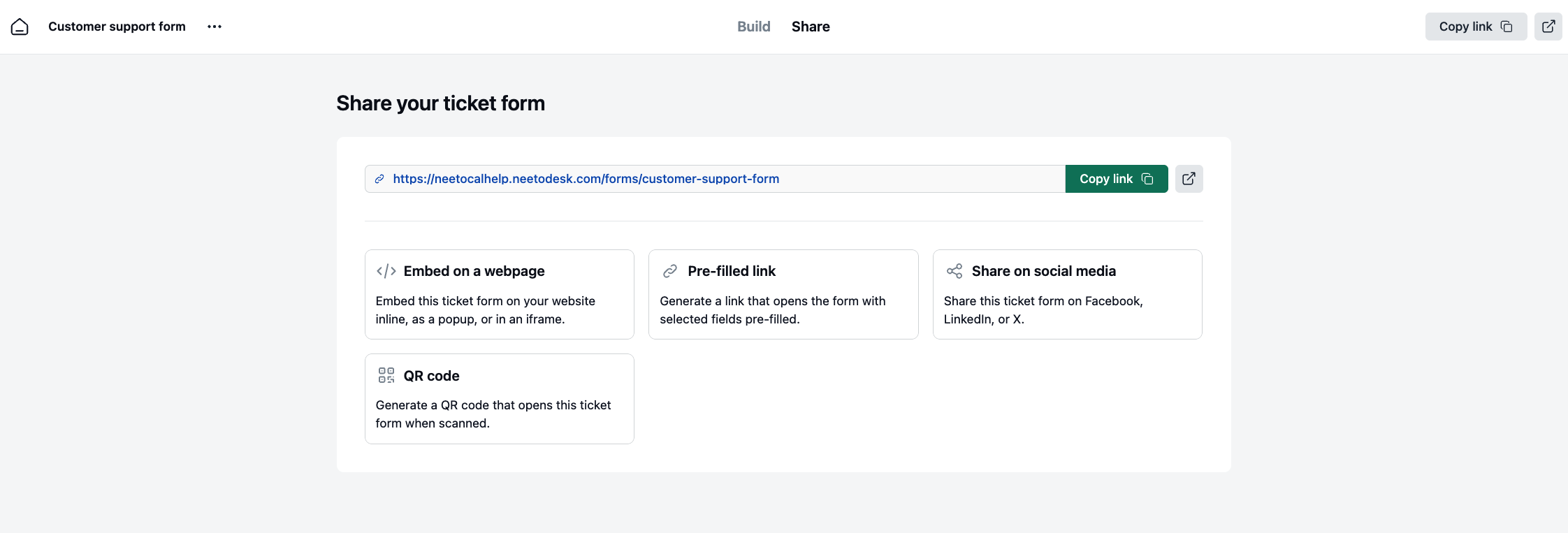
Copying the form's address
The Share tab shows the form's address with a button to copy it. If you have set up a custom domain, the address on that domain is listed as well. Both of them open the same form.
Creating a QR code
A QR code is useful when customers meet your form away from a screen, on a printed notice or a card.
Click on QR code.
Download the code and share it. Anyone who scans it is taken to the form.
Posting the form to social media
Click on Share on social media.
Pick Facebook, LinkedIn, or X.
The post opens on the platform you picked, with the form's address already in it.
Embedding the form on your website
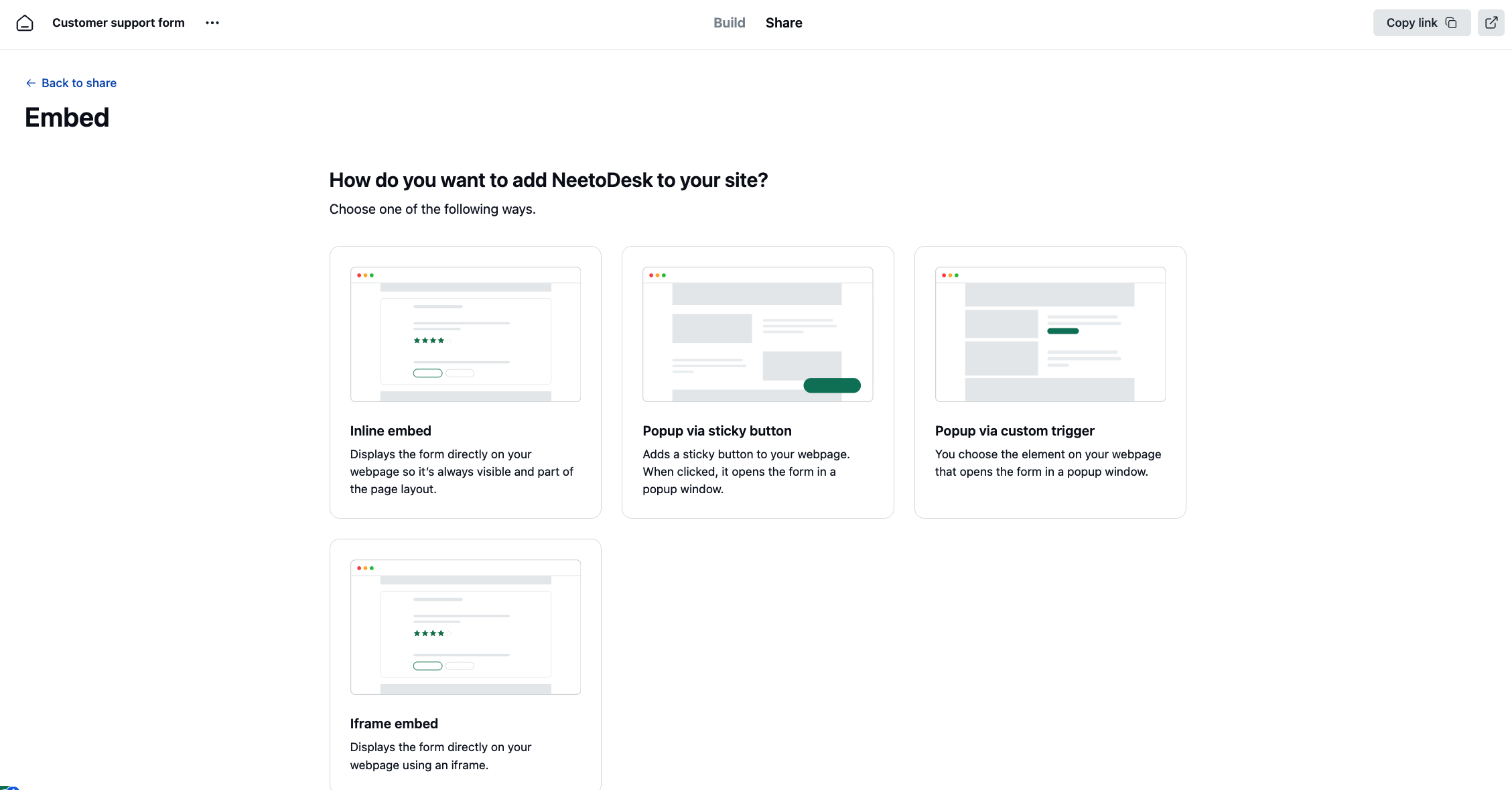
There are four ways to place the form on a page of your own:
Inline embed shows the form as part of the page layout, so it is always visible.
Iframe embed also shows the form on the page, inside an iframe.
Popup via sticky button adds a button that stays in place as the visitor scrolls. Clicking it opens the form in a popup.
Popup via custom trigger lets you pick which element on your page opens the form in a popup.
Click on Embed on a webpage.
Choose one of the four options.
Copy the code it generates and paste it into your page.
A preview next to the code shows how the form will look once the code is in place.
Creating a pre-filled link
A pre-filled link opens the form with some answers already entered, so the customer only fills in what is missing. It is useful when you already know something about who you are sending the form to, such as the product they are on.
Click on Pre-filled link.
Enter the answers you want filled in ahead of time.
Copy the address shown under Your pre-filled link.
The preview beside the address shows the form exactly as the customer will see it, with your answers in place.